Tuesday, 6 March 2012

Character Animation


Using keyframePlayer

This tutorial assumes you have completed my others in the series. You'll need to start withcharacteranim.dir, which has the shockwave 3D cast member with animation in the form of movement in the legs and arms. I've also included another model, a hat, which you can see in the pic on the left.
1. Open the characteranim.dir movie, and open the scene control behavior. For now, we'll run through some code already added. 

At the top, you'll see:
  global gWearHat
  property pTofuBB, pHatBB
  property pCamera, pFlip

I have a global variable, gWearHat, which will define when the character is wearing the hat. Properties pTofuBB andpHatBB are the bounding boxes for the tofu character and hat models respectively. The pFlip variable is one that will flip the movement depending on which camera angle you' re using. 

Scroll down the behavior. In the beginSprite handler, we have:
  hat = pMember.model("hat")
Here we set the hat local variable to the related model.

After we've defined the hat model, we create a hat bounding box, starting with a model resource as follows.
  -- create tofu bounding box  tofuBB_MR = pMember.newModelResource("tofuBox",#box)
  tofuBB_MR.height = 25
  tofuBB_MR.width = 25
  tofuBB_MR.length = 50

  pTofuBB = pMember.newModel("tofuBox",tofuBB_MR)
The above numbers relate to the proportions of the tofu. If you were doing this with your own model, you' d need to keep track of the units in your 3D application. In my case, it was 3DS Max. You could create the bounding box in your 3D application to avoid the need to do it via Lingo as I have.

Next we have:
  pTofuBB.worldPosition = tofu.worldPosition
  
pTofuBB.worldPosition.z = 23
This locates the Tofu character Bounding Box in the scene. I moved the z co-ordinate up 23 units. Otherwise my character would sink through the ground. Again, doing this in the 3D application would have been simpler.

We then have:
  invisShader = pMember.newShader("invisShader",#standard)  invisShader.transparent = TRUE  invisShader.blend = 50  ptofuBB.shaderList = pMember.shader("invisShader")
The above creates a new shader that is meant to be invisible. I have set the blend to 50 so that we can see the bounding box (as seen in the pic). We'll change it to 0 later. The pic shows the bounding box (sphere) for the hat, which we'll create later.
2. We' re now going to create some parent child relationships.  You can read more about parent-child relationship in 3D at myThe make-up of shockwave 3D casts page. Here' s a quick reason why we' re using this technique:

The primary benefit of these parent-child relationships is that they make it easier to move complex models around in the 3D world and to have the component parts of those models move together in the proper way.

Hopefully that will make sense in the context of this tutorial. After the line:
  -- create parent child relationships
insert
  ptofuBB.addChild(tofu, #preserveworld)  ptofuBB.addChild(pMember.model("armR"), #preserveWorld)  ptofuBB.addChild(pMember.model("armL"), #preserveWorld)  ptofuBB.addChild(pMember.model("legR"), #preserveWorld)  ptofuBB.addChild(pMember.model("legL"), #preserveWorld)

In the above code, we made the character bounding box the parent of a number of child models. In a parent child relationship, you can link multiple child objects to a parent but each child can only have one parent. The child objects are the tofu character, and the arms and legs.

3. Let's inspect some other code I have. 
  -- create hat bounding box  hatMR = pMember.newModelResource("hatSphere",#sphere)  hatMR.radius = 18  pHatBB = pMember.newModel("hatSphere", hatMR)  pHatBB.worldPosition = hat.worldPosition  pHatBB.shaderList = pMember.shader("invisShader")  pHatBB.addChild(hat, #preserveWorld)

By
 now, I' d hope the above would all make sense to you. So, I won' t say anything more.

4. You can scroll through the more code which should all be clear. Finally, you'll get to:
  -- set starting motion speed
Follow this statement with:
  pMember.model("armR").keyframePlayer.playRate = 0  pMember.model("armL").keyframePlayer.playRate = 0  pMember.model("legR").keyframePlayer.playRate = 0  pMember.model("legL").keyframePlayer.playRate = 0  pMember.registerForEvent(#timeMS,#SetCollision,me,2500,50,0

The keyframe playRate is a property which defines how fast or slow to play back the keyframe motion. A value of 2 would double the speed, 0.5 would halve it. A value of 0, in our case, sets it to a paused state.

The keyframePlayer registers 2 events - #animationStarted and #animationEnded. And these can be used by handlers declared in registerforEvent()
5. Scroll down to the keyDown handler and look though the code, which should all make sense. Note the statement:
  if keypressed(8) then changeCamera

This means that if the character c is pressed, the changeCamera custom message will be executed.

6. Scroll down to the changeCamera handler.
See the code:
  pCamera.rotate(0,0,180,pTofuBB)
  -- when the camera rotates 180, flip the arrow direction as well  pFlip = pFlip*-1 
What' s happening here is that the camera rotates 180 degrees and the pFlip variable is multiplied to -1. pFlip will become negative it if was positive or positive if it was originally negative.

7. Scroll up to the keyUp handler. After the pDownArrow statement, add:

  pMember.model("armR").keyframePlayer.playRate = 0
  pMember.model("armL").keyframePlayer.playRate = 0  pMember.model("legR").keyframePlayer.playRate = 0  pMember.model("legL").keyframePlayer.playRate = 0
This sets the leg and arm movement to a paused state when the any key is released.

8. Scroll back up to the exitFrame handler, and at the start you'll see SetMoving. This is the custom message to define the movement of the character when a key is pressed. Now scroll down to the SetMoving handler. 

At the start, insert the following code: 
  if pRightArrow then pTofuBB.rotate(0,0,-5*pFlip)  if pLeftArrow then pTofuBB.rotate(0,0,5*pFlip)
  if pUpArrow then
    pTofuBB.translate(0,-5*pFlip,0,#self)
    pMember.model("armR").keyframePlayer.playRate = 1
    pMember.model("armL").keyframePlayer.playRate = 1
    pMember.model("legR").keyframePlayer.playRate = 1
    pMember.model("legL").keyframePlayer.playRate = 1
  end if
  if pDownArrow then
    pTofuBB.translate(0,5*pFlip,0,#self)
    pMember.model("armR").keyframePlayer.playRate = 1
    pMember.model("armL").keyframePlayer.playRate = 1
    pMember.model("legR").keyframePlayer.playRate = 1
    pMember.model("legL").keyframePlayer.playRate = 1
  end if
When the up or down arrows are pressed, the playRate is set to 1 (normal speed). We also have a variable, pFlip, in the equation, which switches between positive and negative, as we saw earlier.

9. The code that you'll see in the rest of the SetMoving handler just moves the character up and down the terrain using themodelUnderRay technique. It is explained in the Terrain following tutorial.

10. Scroll down to the SetCollision handler. In here, I have code that uses the modelUnderRay technique to test when the character collides with objects. But I have included 2 bits of collision scripting. One collision detect will activatecheckObjectFoundDistance, the other checkForCollisioncheckForCollision is exactly as described in the collision detection tutorialcheckObjectFoundDistance is what' s used for finding the hat.

11. Scroll down to checkObjectFoundDistance handler. Here we check the distance from the starting point of the ray to the hat and if the distance represents a collision, gWearHat becomes TRUE.

12. Scroll backup to the exitFrame handler. After the SetMoving statement add:
  if gWearHat = TRUE then
    ptofuBB.addChild(pHatBB,#preserveParent)
    pHatBB.worldPosition = pTofuBB.worldPosition
    pHatBB.worldPosition.z = 87    gWearHat = FALSE
  end if
Following the result of step 11, we now have gWearHat being TRUE and so we make changes accordingly. The hat bounding box is made a child of the character bounding box so that when the character walks, the hat will not be left behind. We change the world position of the hat to correspond to the bounding box of the tofu character. Then we move the hat up 87 along the z axis so it sits on the character' s head. We must set gWearHat back to FALSE otherwise the if gWearHat = TRUE will be put into a infinite loop. The variable can' t be set back to TRUE since the ray that was created to detect the hat is downwards below the character' s head.

13. Now it's time to play the movie and see how it all works. Notice the bounding boxes. To make them completely invisible, change the blend to 0. This was referred to at the end of step 1 just before step 2. 

Another thing to note is that when you press c, you can toggle between a camera looking from behind and in front. But, no matter what camera view you're using, the up arrow will always move the character up the screen, down arrow will move it down. You can download the completed movie from here

If you're wondering why I used a global variable for gWearHat (it could have worked as a property variable like the others used), you can email me or check back this page in the near future as there is a planned addition. 

How the legs and arms were set up in 3DS Max
In Max, the arms and legs were animated as individual objects in a keyframed manner. Lingo made them a child to the body. Often, character animation is created using mesh deformation using a skelteton or bones hierachy. For more info on biped and bones animation setup in Max, look at the Preparing 3D content for Shockwave 3D technote (for general info) and theCharacter Animation for Shockwave 3D article (detailed info).

Cubic VRs / Skyboxes


 In this tutorial, we're going to learn 3D Lingo, including:
- creation of textures, shaders, cameras and their associated properties
- how to control a camera and move around a 3D space
- collision detection using modelsUnderRay- creation and use of skyboxes / cubic VRs

The bulk of the tutorial is Lingo. This Lingo is explained through comments in the scripts as well text text between segments of the code.
Background to Cubic VRs/ Skyboxes 
Before we get stuck into the Lingo, let's look at some background to Cubic VRs and Skyboxes. Cubic VRs are also known as skyboxes, particularly in the gaming circles. The technical term for a skybox is a cubic environmental map or cubic reflection map. They have been around for years as a way to work out reflections when rendering objects in programs like 3DS Max. Skyboxes are used by Apple's QuickTime VR and other panorama technology.


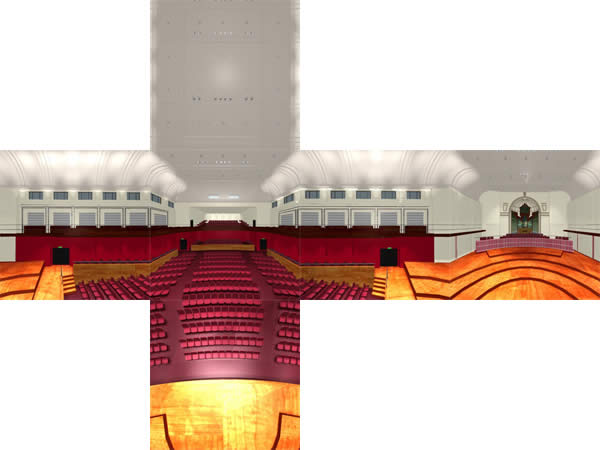
 Skyboxes are made up of 6 images with the camera rotated at 90 degrees between each image as seen in the image to the left. Each segment is square and represents a face of the space - front, back, left, right, top and bottom.

Click on the image on the left to see a larger view.
When developing a skybox for a game, the game engine limitations may restrict the resolution of the images. The higher the resolution, the better the quality, but the larger the texture memory, which may slow the frame rate. Bilinear filtering gives a smoothness when expanding maps, so we don't get a blocky background when using low resolution maps.

The field of view also determines the most suitable resolution. The field of view is the vertical viewing angle property of a camera - i.e. the angle formed by two rays, one drawn from the camera to the top of the projection plane, the other drawn from the camera to the bottom of the projection plane. The field of view can be set by Lingo as we will see later. Common field of views are 60, 75, 90. Popular first-person shoot type games like Quake, have a field of view of 90. 

Before you start, download the following images boxFront, boxRight, boxBack, boxLeft, boxUp, boxDown in the ZIP here, which will form our cubicVR world. You can see the finished tutorial here.
Setting up the Cube
1.
 Download the images and import them into a new movie.
2. We'll start with the easy scripting. In frame 5 of the scripting channel, create a pause frame behavior as follows:
on exitFrame  go the frameend
3.  Create a new shockwave 3D cast member. This can be simply down by opening the Shockwave 3D window then entering a name at the top. Name the 3D cast 3Dworld.

4. Place the 3Dworld member in the Score in sprite channel 1, extending over frames 1 to 5.

5. Create a new behavior attached to the 3D sprite and call it cubic environment setup. This, as the name implies, sets up the cube for our 3D world.  Enter the following in the script:

property p3Dmember       -- reference to the 3D memberproperty pCamera         -- reference to camera
on beginSprite me 
  -- initiate properties and resetWorld  p3Dmember = sprite(me.spriteNum).member
  
p3Dmember.resetWorld()  pCamera= sprite(me.spriteNum).camera 
  ------------------------- 
Next, we define properties for the camera starting with the fieldOfView (vertical viewing angle of the camera). If using Director 8.5, use projectionAngle (now obsolete Lingo) instead of fieldOfViewfieldOfView is also used for QTVR.

  -- camera properties 
  -- set up the camera's vertical viewing angle  pCamera.fieldOfView = 90 
  -- position the camera  pCamera.transform.position = vector(0,0,0)

  -- rotate the camera to point forward along the Z   -- axis  
  pCamera
.pointAt
(vector(0,0,-100)) 
  --------------------------
  -- create a cube with dimensions 256 x 256 x 256
  -- create cube model resource  boxRes = \
p3Dmember.newModelResource("boxRes",#box,#back)
  boxRes.width = 256 
  boxRes.height = 256 
  boxRes.length = 256 

  -- create a cube model from the model resource
  boxMod = p3Dmember.newModel("boxMod",boxRes)    
  ------------------------- 

  -- create textures and shaders for faces of cube
  -- create a list that contains all the image cast   -- members that will form the faces of the box   boxFaceNames = \
["boxFront","boxRight","boxBack","boxLeft",\
"boxUp","boxDown"]
  -- set up an empty list for the textures and shaders  boxTextureList = [] -- stores textures for each face  boxShaderList = []  -- stores shaders for each face
  -- create a new texture and shader for each of the 6   -- faces of the box
  repeat with side = 1 to 6

    -- create texture and add to texture list    boxTextureList[side] = p3Dmember.newTexture \ ("boxTexture"&side,
#fromCastMember,member(boxFaceNames[side]))
    -- set texture properties    boxTextureList[side].nearFiltering = 1
    boxTextureList[side].renderFormat = #rgba8880
    boxTextureList[side].quality = #high

The nearFiltering property enables bilinear filtering, which smoothes any errors across the texture and thereby improves the texture's appearance, particularly if the image is rendered larger than the map.

The renderFormat property specifies the colour depth for each pixel, with each digit indicating the color depth being used for red, green, blue, and alpha. Since our image is a 24 bit image with no alpha, rgb8880 will give the best quality

The quality property allows the control over the level of mipmapping. This is where several versions of a texture image (smaller than the original) are saved and the 3D Xtra uses whichever is closest to the current size of the model. Trilinear mipmapping (#high) is the highest quality but the biggest in memory size. Mipmapping resamples the image to improve the texture appearance, but is unlike filtering which spreads errors across the image so they are less concentrated.

Common map sizes are 256 x 256 and 512 x 512. For best results, textures should be made with pixel dimensions that are to the power of 2 for height and width: e.g. 8, 16, 32, 64, 128, 256, 512. The shockwave 3D engine will stretch bitmaps to the nearest appropriate dimension and can distort the texture somewhat in the process.

    -- create a shader and add it to the shader list    -- we created (not to be confused with shaderList
    -- property)
    boxShaderList[side] = \
p3Dmember.newShader("boxShader"&side,#standard)
   
    -- set shader properties    boxShaderList[side].emissive = rgb(255, 255, 255)
    boxShaderList[side].ambient = rgb(0, 0, 0)
    boxShaderList[side].diffuse = rgb(0, 0, 0)
    boxShaderList[side].specular = rgb(0, 0, 0)
    boxShaderList[side].shininess = 0
    boxShaderList[side].textureRepeat = 0
Making the shader's emissive property pure white (rgb(255, 255, 255)) makes the material look self-illuminated. Theambient, diffuse and specular properties are set to rgb(0,0,0) to further ensure the shader is not affected by any lights in the scene.

The textureRepeat property has a default value of TRUE (1)which means the texture will repeat across the surface if necessary. A value of FALSE (0) will scale the map to the size of the surface, and, in our case, will result in a seamless edge between one texture map and the next.

    -- assign textures to shaders     -- and shaders to box faces    boxShaderList[side].texture = boxTextureList[side]
    boxMod.shaderList[side] = boxShaderList[side]   
The shaderList allows us to assign a map to a particular face of the cube. The shaderList is a linear list for each mesh within the model resource. For a sphere, there is only one model resource. Therefore, a sphere shaderList will only have one entry. In the case of a box, there are 6 meshes, one for each face of the box.   
  end repeat  
  -------------------------
end

Setting up the 3D navigation
1. Create a new behavior called 3D navigation. This should be attached to the 3D sprite and contain the following script:
-- reference to the 3D member, 3D sprite, sprite's camera
property
 p3Dmember, pSprite, pCamera      

-- reference to the sphere used to surround the camera
-- (will be used for collision detection)
property pCameraSphere

-- indicates if the user is pressing the arrow keys
-- by TRUE or FALSE value relating to a down or up
-- position.
property pUpArrow, pDownArrow, pLeftArrow, pRightArrow

-- indicates if the user is pressing the left mouse-- button or the right mouse button (Win) or is-- holding the control key while pressing the mouse
-- down (Mac)
property pMouseDown, pRightMouseDown

on beginSprite me
  -- initiate properties
  pSprite = sprite(me.spriteNum)
  p3Dmember = pSprite.member
  pCamera = pSprite.camera  
  pUpArrow  = FALSE
  pDownArrow  = FALSE
  pLeftArrow  = FALSE
  pRightArrow  = FALSE
  pMouseDown = FALSE
  pRightMouseDown = FALSE 
  -- create the camera's bounding sphere
  camSphereRes = \
p3Dmember.newModelResource("camSphereRes",#sphere)
  camSphereRes.radius = 20
  pCameraSphere = \
p3Dmember.newModel("cameraSphere",camSphereRes)
  -- make the sphere a child of the camera, using
  -- #preserveParent so the sphere will move with the
  -- camera (the parent)
  pCamera.addChild(pCameraSphere,#preserveParent)

   -- register the member for regular timeMS events in  -- order to respond to user input and resolve camera  -- collisions i.e. after specified time segments   -- activate the controlCamera handler  p3Dmember.registerForEvent(#timeMS,#controlCamera,me,1000,10,0)

end
In the above script me is the scriptObject parameter and indicates the controlCamera handler is in the same script as theregisterForEvent command. 1000 is the begin parameter and indicates that the first time the controlCamera handler is to be activated will be 1 second (or 1000 milliseconds) after the registerForEvent command has occurred. 10 is theperiod parameter and indicates the subsequent time interval (in milliseconds) for the controlCamera handler to be activated. 0 is the repetitions parameter and indicates the #timeMS event will occur indefinitely. Using 0 for repetitionsmakes the period parameter insignificant (it will be ignored).
on keyDown
   -- update the key property based on which key is   -- pressed
  case the keycode of
    123 : pLeftArrow  = TRUE -- left arrow
    124 : pRightArrow  = TRUE -- right arrow
    125 : pDownArrow  = TRUE -- down arrow
    126 : pUpArrow  = TRUE -- up arrow  end caseend
on keyUp
  -- update the key properties
  pLeftArrow  = FALSE
  pRightArrow  = FALSE
  pUpArrow  = FALSE
  pDownArrow  = FALSE
end
on mouseDown 
  -- update the mouse down property
  pMouseDown = TRUE
end
on mouseUp
  -- update the mouse up property
  pMouseDown = FALSE
end
on rightMouseDown
  -- update the right mouse down property
  pRightMouseDown = TRUE
end
on rightMouseUp 
  -- update the right mouse up property
  pRightMouseDown = FALSE
end
on controlCamera me   
  -- control the left/right/forward/backward movement
  -- and rotation of the camera

  -- if the left arrow key is pressed then move the
  -- camera left
  if pLeftArrow then pCamera.translate(-5,0,0)
  -- if the right arrow key is pressed then move the
  -- camera right

  if pRightArrow then pCamera.translate(5,0,0)
  -- if the up arrow key is pressed then move the
  -- camera forward

  if pUpArrow then pCamera.translate(0,0,-3)
  -- if the down arrow key is pressed then move the
  -- camera backward

  if pDownArrow then pCamera.translate(0,0,3)
  -- if the left mouse is down then rotate the camera
  -- clockwise

  if pMouseDown then pCamera.rotate(0,-2,0)

  -- if the right mouse is down then rotate the camera  -- anti-clockwise
  if pRightMouseDown then pCamera.rotate(0,2,0)
end

2.
 Rewind and play the movie. Click on the mouse button and the arrow keys. 
Everything should work nicely until you get close to the walls, and find you can walk through them. This occurs because we have yet to add our collision detection.

Setting up Collision detection 
3. Next, we write the code for the collision detection using the modelsUnderRay technique.This will involve casting rays from the camera in 4 directions - forward, backward, left and to the right. For each ray cast, we will have to verify if the distance to the nearest model exceeds the camera's bounding sphere radius. If the distance is less than the bounding sphere's radius, we will then move the camera out of the collision state in a direction perpendicular to the intersected model's surface.

The modelsUnderRay command returns a list of models found under the ray. The syntax is as follows:
member(whichCastmember).modelsUnderRay(locationVector, directionVector, \
{maxNumberOfModels, levelOfDetail})

maxNumberOfModels and levelOfDetail are optional parameters.
Add the following code to the end of the 3D navigation script. Make sure it appears just before the end statement. 
  -- Control collisions of the camera with the walls
  -- of the cube
  -- cast a ray to the left
  collisionList = \
p3Dmember.modelsUnderRay(pCamera.worldPosition,\
  -pCamera.transform.xAxis,#detailed)
In the above statement, we create a list (collisionList), to hold the information generated by the modelsUnderRaycommand. #detailed is used for the levelOfDetail parameter and will return a list of property lists, each representing an intersected model. #distance is one of the properties that will appear on the property list, which, in our case, represents the distance from the camera to the point of intersection with the model.

  -- if there are models in front of the camera check
  -- for collisions

  if (collisionList.countthen
    -- go to custom handler checkForCollision     -- and send the collisionList as a parameter.
    me.checkForCollision(collisionList[1])
  end if
  -- cast a ray to the right
  collisionList = \
p3Dmember.modelsUnderRaypCamera.worldPosition,\
  pCamera.transform.xAxis,#detailed)

   -- if there are models in front of the camera check 

   -- 
for collisions
  if (collisionList.countthen
    me.checkForCollision(collisionList[1])   
  end if

   -- cast ray forward

  collisionListt = \
p3Dmember.modelsUnderRay(pCamera.worldPosition,\
  -pCamera.transform.zAxis,#detailed)

  -- if there are models in front of the camera check   -- for collisions
  if (collisionList.countthen
    me.checkForCollision(collisionList[1])   
  end if 
  -- cast ray backward
  collisionList = \
p3Dmember.modelsUnderRay(pCamera.worldPosition,\
  pCamera.transform.zAxis,#detailed)

  -- if there are models in front of the camera check   -- for collisions
  if (collisionList.countthen
    me.checkForCollision(collisionList[1])   
  end if
This next custom message (checkForCollision me, thisData) is activated when a model is picked up bymodelsUnderRay. The statement we used above:
me.checkForCollision(collisionList[1]) -- dot syntax
is equivalent to
checkForCollision mecollisionList[1] -- verbose syntax
So, collisionList[1] is assigned as a value to the parameter thisData.

Add the following to the end of the behavior. Make sure it appears after the end statement.

on
 checkForCollision methisData 

  -- grab the #distance value from the collisionList
  dist = thisData.distance

  -- check if distance is smaller than the radius of  -- the bounding sphere
  if (dist < pCameraSphere.resource.radiusthen

    -- get distance of penetration
    diff = pCameraSphere.resource.radius - dist

    -- calculate vector perpendicular to the wall's
    -- 
surface to move the camera (using the     -- #isectNormal property)
    tVector = thisData.isectNormal * diff
    -- move the camera in order to resolve the     -- collision
    pCamera.translate(tVector,#world)

  end if

end
4. Now play the movie and see how it works. 
You can download the movie at this stage from from here
.

As you can see, this is not a true Cubic VR. While it does give a sense of movement around the space, as we move closer to the walls of the box, the realism starts to diminish because the 'flatness' of the faces and perspective distortion becomes more noticeable. In a true Cubic VR, the camera would always remain at the centre of the cube. Zooming in and out may be possible. Keeping the camera at the centre will maintain a greater realism to the spatial experience. So, that's what we'll look at now.

Creating a skybox/Cubic VR zoom and rotate
This section covers a behavior adapted from Barry Swan's skybox demo. His demo and source files can be found at:http://www.inludo.com/tuts/skybox01.htm
1. Remove/delete the 3D navigation behavior from the 3D sprite and create a new behavior called Cubic VR camera controller. Enter the following into the script:

-- Camera rotation and zoom controller
property pCamera -- reference to the 3D camera

-- reference to whether the rotation is happening
-- and mouse start position
property pIsRotating, pStartLoc
-- camera location properties 
property pXAngle, pXCamera
-- camera zoom properties
property
 pFOV, pFOVmin, pFOVmax, pZoomSpeed
on beginSprite me
  -- camera properties  pCamera  = sprite(me.spriteNum).camera  pFOV = pCamera.fieldOfView

  pFOVmin = 20.0 -- min zoom in  pFOVmax = 120.0 -- max zoom out  pZoomSpeed = 1.0 -- speed of zoom
  -- store a copy of all camera transform properties  pXCamera = pCamera.transform.duplicate()

  pXAngle = 0.0 -- starting angle for rotation  pIsRotating = 0  -- not rotating at start
end

-- start rotating and set start position of mouseon mouseDown me  pStartLoc = the mouseLoc  pIsRotating = 1end


on
 mouseUp me  pIsRotating = 0 -- stop rotationend


on
 mouseUpOutside me  pIsRotating = 0 -- stop rotationend


on
 exitFrame me
  -- zooming effect  if rollover(me.spriteNum) then
    if the shiftDown then      -- change fieldofView until it reaches max zoom      -- in = pFOVmin      pFOV = max(pFOV - pZoomSpeed/2, pFOVmin)
      pCamera.fieldofview = pFOV
    else if the commandDown then      -- change fieldofView until it reaches max zoom      -- out = pFOVmax      pFOV = min(pFOV + pZoomSpeed/2, pFOVmax)
      pCamera.fieldofview = pFOV
    end if

  end if

  -- rotating movement  if pIsRotating then    currentLoc = the mouseLoc    currentDX = currentLoc.locH - pStartLoc.locH
    currentDY = currentLoc.locV - pStartLoc.locV
    -- modify camera rotation (rotates at a speed    -- proportional to pFOV)    proportion = -0.00012 * pFOV
    pXCamera.rotate(0.0currentDX * proportion, 0.0)
    pXAngle = min(max(pXAngle + currentDY * \
proportion, -90.0), 90.0)

    -- set camera rotation    pCamera.transform.rotation = pXCamera.rotation    pCamera.rotate(pXAngle, 0.0, 0.0)
  end if

end

Share

Twitter Delicious Facebook Digg Stumbleupon Favorites More