Showing posts with label Corel Draw Tutorial. Show all posts

Tuesday, 21 February 2012

Knife Tool

Knife tool can be used to slice the object. Learn this carefully as it may be a bit confusing. Always remember that you need to start and end the cutting on the outline of the object.
1. Open Corel Draw. Select Rectangle tool and draw rectangle. Fill it with any color.
corel draw knife tool
2. Selection doesn't affect this tool.
3. Select Knife Tool (marked with green circle in the image below).
corel draw knife tool
4. Position it on the outline of the rectangle where you want to start cutting. We started from the point that is marked with red circle.
corel draw knife tool
5. Once you position it will snap upright if the position is correct.
6. Drag the tool to the outline at the other end. We finished at the end on the outline which is marked by the yellow circle.
corel draw knife tool
7. Release the cursor when it snaps again upright to indicate that the end position is correct.
8. The rectangle is sliced into two parts.
corel draw knife tool
9. They are two different objects now that can be selected separately and fill different colors.
corel draw knife tool

Graph Paper Tool Graph Paper Tool

Corel DRAW provides some non conventional tools and Graph Paper tool is one of them. We will learn how to use this tools in this lesson.
1. Open Corel DRAW.
2. Select Graph Paper Tool (marked with green circle).
corel draw graph paper tool
3. Once you select this tool you will get the properties of the tool in the Property bar which is situated at the top. Change rows and columns according to the requirements.
corel draw graph paper tool
4. Drag the cursor on the page. You will get graph paper on the page that has specified rows and columns.
corel draw graph paper tool
5. If you press CTRL key and drag the cursor, you will get the graph paper in square form and the rows and columns will be adjusted within the square.
corel draw graph paper tool

Monday, 20 February 2012

Corel Draw Shortcut Keys

Here's a list of default keyboard shortcuts.
Align BottomBAligns selected objects to the bottom
Align Centers HorizontallyEHorizontally aligns the centers of the selected objects
Align Centers VerticallyCVertically aligns the centers of the selected objects
Align LeftLAligns selected objects to the left
Align RightRAligns selected objects to the right
Align To BaselineAlt+F12Aligns text to the baseline
Align TopTAligns selected objects to the top
Artistic MediaIDraws curves and applies Preset, Brush, Spray, Calligraphic or Pressure Sensitive effe
Back OneCtrl+PgDnBack One
Break ApartCtrl+KBreaks apart the selected object
Brightness/Contrast/IntensityCtrl+BBrightness/Contrast/Intensity...
Bring up Property BarCtrl+EnterBrings up the Property Bar and gives focus to the first visible item that can be tabbed to
Center to PagePAligns the centers of the selected objects to page
Character FormattingCtrl+TCharacter Formatting
Color Balance...Ctrl+Shift+BColor Balance
CombineCtrl+LCombines the selected objects
ContourCtrl+F9Opens the Contour Docker Window
ConvertCtrl+F8Converts artistic text to paragraph text or vice versa
Convert Outline To ObjectCtrl+Shift+QConverts an outline to an object
Convert To CurvesCtrl+QConverts the selected object to a curve
CopyCtrl+CCopies the selection and places it on the Clipboard
CopyCtrl+InsertCopies the selection and places it on the Clipboard
CutCtrl+XCuts the selection and places it on the Clipboard
CutShift+DeleteCuts the selection and places it on the Clipboard
DeleteDeleteDeletes the selected object(s)
Distribute BottomShift+BDistributes selected objects to the bottom
Distribute Centers HorizontallyShift+EHorizontally Distributes the centers of the selected objects
Distribute Centers VerticallyShift+CVertically Distributes the centers of the selected objects
Distribute LeftShift+LDistributes selected objects to the left
Distribute RightShift+RDistributes selected objects to the right
Distribute Spacing HorizontallyShift+PHorizontally Distributes the space between the selected
Distribute Spacing VerticallyShift+AVertically Distributes the space between the selected objects
Distribute TopShift+TDistributes selected objects to the top
DuplicateCtrl+DDuplicates the selected object(s) and offsets by a specified amount
Duplicate In Place+Duplicates the selected object(s) at their current location
Dynamic GuidesAlt+Shift+DShows or hides the Dynamic Guides (toggle)
Edit Text...Ctrl+Shift+TOpens the Edit Text dialog box
EllipseF7Draws ellipses and circles; double-clicking the tool opens the Toolbox tab of the Option
EnvelopeCtrl+F7Opens the Envelope Docker Window
EraserXErases part of a graphic or splits an object into two closed paths
ExitAlt+F4Exits CorelDRAW and prompts to save the active drawing
Export...Ctrl+EExports text or objects to another format
Font Size DecreaseCtrl+NUMPAD2Decreases font size to previous point size
Font Size IncreaseCtrl+NUMPAD8Increases font size to next point size
Font Size Next Combo SizeCtrl+NUMPAD6Increase font size to next setting in Font Size List
Font Size Previous Combo SizeCtrl+NUMPAD4Decrease font size to previous setting available in the Font Size List
Forward OneCtrl+PgUpForward One
Fountain Fill...F11Applies fountain fills to objects
FreehandF5Draws lines and curves in Freehand mode
Full-Screen PreviewF9Displays a full-screen preview of the drawing
Graph PaperDDraws a group of rectangles; double-clicking opens the Toolbox tab of the Options dial
Graphic and Text StylesCtrl+F5Opens the Graphic and Text Styles Docker Window
GroupCtrl+GGroups the selected objects
HandHHand Tool
Horizontal Text CCtrl+,Changes the text to horizontal direction
Hue/Saturation/Lightness...Ctrl+Shift+UHue/Saturation/Lightness
Import...Ctrl+IImports text or objects
Insert Symbol CharacterCtrl+F11Opens the Insert Character Docker Window
Interactive FillGAdds a fill to object(s); clicking and dragging on object(s) applies a fountain fill
LensAlt+F3Opens the Lens Docker Window
LinearAlt+F2Contains functions for assigning attributes to linear dimension lines
Macro Editor...Alt+F11Macro Editor...
Mesh FillMConverts an object to a Mesh Fill object
Micro Nudge DownCtrl+DnArrowNudges the object downward by the Micro Nudge factor
Micro Nudge LeftCtrl+LeftArrowNudges the object to the left by the Micro Nudge factor
Micro Nudge RightCtrl+RightArrowNudges the object to the right by the Micro Nudge factor
Micro Nudge UpCtrl+UpArrowNudges the object upward by the Micro Nudge factor
NavigatorNBrings up the Navigator window allowing you to navigate to any object in the document
NewCtrl+NCreates a new drawing
Next PagePgDnGoes to the next page
Nudge DownDnArrowNudges the object downward
Nudge LeftLeftArrowNudges the object to the left
Nudge RightRightArrowNudges the object to the right
Nudge UpUpArrowNudges the object upw
Open...Ctrl+OOpens an existing drawing
Options...Ctrl+JOpens the dialog for setting CorelDRAW options
Outline Color...Shift+F12Opens the Outline Color dialog box
Outline Pen...F12Opens the Outline Pen dialog box
Pan DownAlt+DnArrowPan Down
Pan LeftAlt+LeftArrowPan Left
Pan RightAlt+RightArrowPan Right
Pan UpAlt+UpArrowPan Up
PasteCtrl+VPastes the Clipboard contents into the drawing
PasteShift+InsertPastes the Clipboard contents into the drawing
Place Inside Container...Ctrl+1Places selected object(s) into a PowerClip container object
PolygonYDraws polygons
PositionAlt+F7Opens the Position Docker Window
Previous PagePgUpGoes to the previous page
Print...Ctrl+PPrints the active drawing
PropertiesAlt+EnterAllows the properties of an object to be viewed and edited
Record Temporary MacroCtrl+Shift+RRecord Temporary Macro
RectangleF6Draws rectangles; double-clicking the tool creates a page frame
RedoCtrl+Shift+ZReverses the last Undo operation
Refresh WindowCtrl+WRedraws the drawing window
RepeatCtrl+RRepeats the last operation
RotateAlt+F8Opens the Rotate Docker Window
Run Temporary MacroCtrl+Shift+PRun Temporary Macro
Save As... SCtrl+Shift+Saves the active drawing with a new name
Save...Ctrl+SSaves the active drawing
ScaleAlt+F9 WindowOpens the Scale Docker
Select allCtrl+ASelect all object of the active page
ShapeF10Edits the nodes of an object; double-clicking the tool selects all nodes on the selected
SizeAlt+F10 WindowOpens the Size Docker
Smart DrawingShift+S Dbl-clickopens Smart Drawing Tool options; Shift+drag backwards over line erases
Snap to GridCtrl+YSnaps objects to the grid (toggle)
Snap to ObjectsAlt+ZSnaps objects to other objects (toggle)
Spell Check...Ctrl+F12Opens the Spell Checker; checks the spelling of the selected text
SpiralADraws spirals; double-clicking opens the Toolbox tab of the Options dialog
Step and Repeat...Ctrl+Shift+DShows Step and Repeat docker
Stop RecordingCtrl+Shift+OStop Recording
Super Nudge DownShift+DnArrowNudges the object downward by the Super Nudge factor
Super Nudge LeftShift+LeftArrowNudges the object to the left by the Super Nudge factor
Super Nudge RightShift+RightArrowNudges the object to the right by the Super Nudge factor
Super Nudge UpShift+UpArrowNudges the object upward by the Super Nudge factor
Symbol ManagerCtrl+F3Symbol Manager Docker
TextF8Adds text; click on the page to add Artistic Text; click and drag to add Paragraph Text
To Back Of LayerShift+PgDnTo Back Of Layer
To Back Of PageCtrl+EndTo Back Of Page
To Front Of LayerShift+PgUpTo Front Of Layer
To Front Of PageCtrl+HomeTo Front Of Page
Toggle Pick StateCtrl+SpaceToggles between the current tool and the Pick tool
Toggle ViewShift+F9Toggles between the last two used view qualities
UndoCtrl+ZReverses the last operation
UndoAlt+BackspaceReverses the last operation
UngroupCtrl+UUngroups the selected objects or group of objects
Uniform Fill...Shift+F11Applies uniform color fills to objects
Use bulletsCtrl+MShow/Hide Bullet
Vertical TextCtrl+.Changes the text to vertical
View ManagerCtrl+F2Opens the View Manager Docker Window
What's This?Shift+F1What's This? Help
ZoomZZoom Tool
Zoom One-ShotF2
Zoom OutF3Zoom Out
Zoom To FitF4Zoom To All Objects
Zoom To PageShift+F4Zoom To Page
Zoom To SelectionShift+F2Zoom To Selected

Sunday, 19 February 2012

Creating Complex Shapes


This tutorial will show you how to create complex shapes in Corel DRAW! I used Corel DRAW! 7.0 for Windows. Some things may be done differently with other versions. 

It's fairly easy to create simple shapes with a vector drawing program such as Corel DRAW!. There are built-in tools for creating circles, ellipses, squares, rectangles and polygons, etc... You may wonder, though, how to create more complex shapes. The tools to help with this are there, as well, they're just not as obvious.
 

In this tutorial I'll demonstrate how to center objects, how to "combine" more than one shape to cut one shape from another and how to "weld" several shapes into one. I'll also show you how to duplicate objects while changing their size and how to rotate an object with its center of rotation changed so as to duplicate shapes around a single point that you determine.
 

Before we begin, let's take a look at the shape we'll be creating (see figure 5.1).

 You may recognize this shape as the shape that's used to signify radioactivity. I had this shape in mind for a new design that I wanted to use here at GrafX Design. You'll see it showing up here-and-there at the bottom of various pages.

At first glance you may not see how this shape can be created with circles and triangles. Take a look at figure 5.2, though, and you'll note that the radioactive symbol is made up of an outer circle (shown in blue), an inner circle (in red) and three triangles (in yellow).


Start out by opening a new image.


NOTE: If you don't see the rulers at the top and left of the main window--choose View, Rulers. This will turn the rulers on.


To help with the exact placement of the different objects that make up the final shape you can set the guidelines. Simply click-and-drag down from the ruler at the top to create a horizontal guideline, and click-and-drag from the ruler at the left to create a vertical guideline (see figure 5.3).
 
 You want the quidelines to dissect the image in the center so set the vertical guideline at 4.25 inches (half of 8.5 inches, the width of the page) and set the horizontal guideline at 5.50 inches (half of 11 inches, the length of the page). You can see the coordinates of the guidelines change, as you move them, in the lower left of the screen. 

Now you're ready to begin drawing.
 

Select the Ellipse tool and, while holding down the CTRL key to constrain the ellipse to a circle, draw a circle about 2.5 inches in diameter.
 

Choose Arrange, Align and Distribute. This will bring up the Align and Distribute dialog box. Choose the Align tab, select Center of Page and click OK. Your circle should now be centered over the guidelines.
 

Choose Arrange, Transform, Scale and Mirror to bring up the Scale and Mirror dialog box (see figure 5.4).


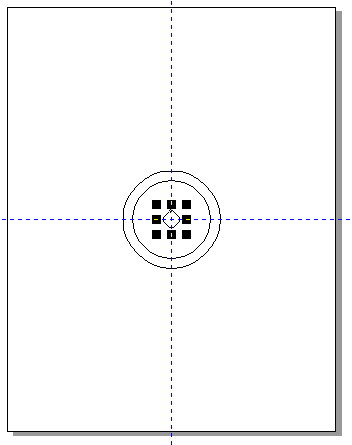
Make sure there's a checkmark in the Proportional checkbox and enter 80% beside the H in the Scale window (with Proportional checked you won't need to set both the H, horizontal, and the V, vertical. Click on the Apply to Duplicate button.
 

Change the 80% to 20% and click the Apply to Duplicate button again. You should now have 3 centered circles (see figure 5.5). Select the Pick tool and click away from the circles to de-select them. 
 

Click on the outside circle, to select it, and then SHIFT-click the second circle to select it as well. 

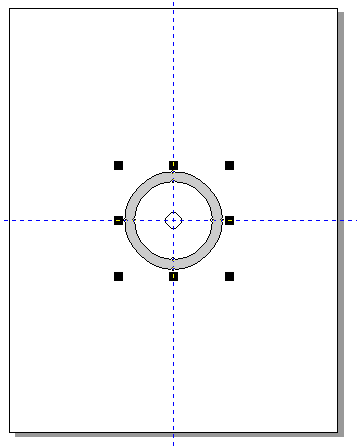
Choose Arrange, Combine. Nothing seems to have happened, but the inner circle has been cut away from the outer circle leaving a donut shape with a large hole in it. If you select a fill color now you'll see that this is true because the second circle doesn't fill in (see figure 5.6).


What you've just done is you've created a new shape from two separate shapes.
 

Double-click the Polygon tool to bring up the Options dialog box. Set the shape to polygon and the number of points/sides to 3.
 

Place the cursor in the middle of the circles and click-and-drag up and to the left to create a triangle. It should be big enough to span the distance between the small circle and the new circular shape (see figure 5.7). 


Choose Layout, Snap to Guidelines.
 

You may want to zoom in to about 400% to help with the following steps.
 

Select the Pick tool and use it to select the triangle shape. Move the shape into position with its bottom corner at the center of the circles (see figure 5.8). 


With the Pick tool still selected, click on the triangle again to get the rotation arrows. Move the center of revolution to the same point as the bottom of the triangle (see figure 5.9).


The center of revolution is a small circle with a dot in it. It will originally show up in the center of the triangle. You can click-and-drag it into place. Since the snap-to-guidelines is set it will snap into place in the center of the guidelines.
 

You should still have the Scale and Mirror dialog box open. Choose Rotation. Set the Angle to 120 deg. and click the Apply to Duplicate button to create a second triangle. Click the Apply to Duplicate button once more to create a third triangle (see figure 5.10).


Click anywhere to clear the selection and then click-and-drag a marquee around all of the shapes to select all of the objects.
 

Near the top-right of the screen you should see the Weld icon (see figure 5.11).


figure 5.11
figure 5.11


Clicking on this icon will complete the image (see figure 5.12).

 Make sure you keep a copy of the vector drawing i.e. save the image as a CDR file so you can go back and make changes easily later on. 

Of course, this final image was only really half of the design I had envisioned. To complete the design I exported the image as an EPS file and opened it in Photoshop. I then added some texture using Auto/FX. I played with the color, contrast and brightness, and lighting until I had the exact texture I wanted. I also added an Inner Bevel using Alien Skin's Eye Candy. Finally, I added a custom radial gradient behind the shape. There was still something missing, though, so to finish up I went back to Corel DRAW! and I created some text along a circular path and exported that, too. I then opened the text in Photoshop and cut-and-pasted it over the radioactive image to arrive at the completed design you see below (figure 5.13). This image can be flaunted using your reliable
 website hosting.

Saturday, 18 February 2012

3D Buttons


This tutorial will show you how to create 3D buttons in Corel DRAW! I used Corel DRAW! 7.0 for Windows. Some things may be done differently with other versions. 

The buttons you'll draw during this tutorial were inspired by my stereo. I originally created these buttons for the first Earth Orbit Consulting web site. I subsequently went on to create the first GrafX Design online tutorial describing how I had created these buttons with Paint Shop Pro. To show you how some graphics can be created with a vector program as easily as they can be with a paint program, I'm re-creating that first tutorial here. 

This technique involves a little more effort than the first Corel DRAW! tutorial though it's still rather simple. 

Open a new graphic. Choose the ellipse tool and, while holding down the Ctrl key to constrain the ratio, draw a circle about 2.5 inches in diameter at the left of the page. 

Select the pick tool and, with the circle selected, hit Ctrl-c and Ctrl-v to copy and paste the circle. Use the right cursor key to move the copy to the right of the page. (see figure 2.1).


Select the rectangle tool and draw a rectangle between the two circles. Make sure that the corners of the rectangle meet with the circles (see figure 2.2) 


Use the pick tool to draw a marquee around both circles and the rectangle. Click the intersection 
Intersection icon. This will only create the intersection of the left-most circle and the rectangle (see figure 2.3).


Use the pick tool to draw another marquee around the right-most circle and the rectangle. Click the intersect icon again. You should now have two intersections with the rectangle. Choose the circles, one at a time, and delete them. This should leave you with something like figure 2.4.


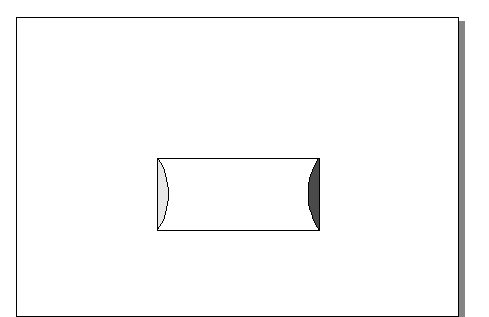
Use the pick tool to select the left-most curve and fill this object with a light gray. Select the right-most curve and fill this object with a dark gray (see figure 2.5).


Select the fill tool and choose the gradient tool from the flyout menu. This will bring up the Fountain Fill dialog box. Under Color blend, select Custom. This will change the Fountain Fill dialog box so that it resembles figure 2.6. 


Add another point to the blend by double-clicking above the rectangular blend window. Change the middle point (the one you just added) to a light gray by clicking on the Current pulldown menu (it's just above the custom blend window). Change the color at both of the outside points to dark gray. Set the Angle to 90 and adjust the middle point so that your blend resembles the one in figure 2.6. Click OK. 


NOTE: The custom blend starts out with only a beginning and an ending point. You can add more points to create your custom blend by double-clicking above the blend window. These points can also be moved by clicking and dragging.


Select the button with the pick tool and, using the outline tool flyout menu, set the outline to none. 

Use Arrange, Transform, Scale and Mirror to resize the button. 

At this point you might want to save the button (see figure 2.7).


I exported the button as a JPG with the following settings in the Bitmap Export dialog box. The really important settings to remember are the Maintain aspect ratio and Super-sampling. 


Use the text tool to add some text to your button. I used the Bedrock font. You may choose to copy and paste the text with a different color to add a highlight (see figure 2.9).


Share

Twitter Delicious Facebook Digg Stumbleupon Favorites More